

It can be incredibly frustrating when you need to print an urgent document and your computer suddenly refuses to communicate with your device. It is very common to encounter a Brother printer offline status issue that many users face after updating their operating systems. This guide will walk you through simple steps to resolve this glitch. With the right troubleshooting steps, you can get your machine running smoothly again without needing technical expertise.
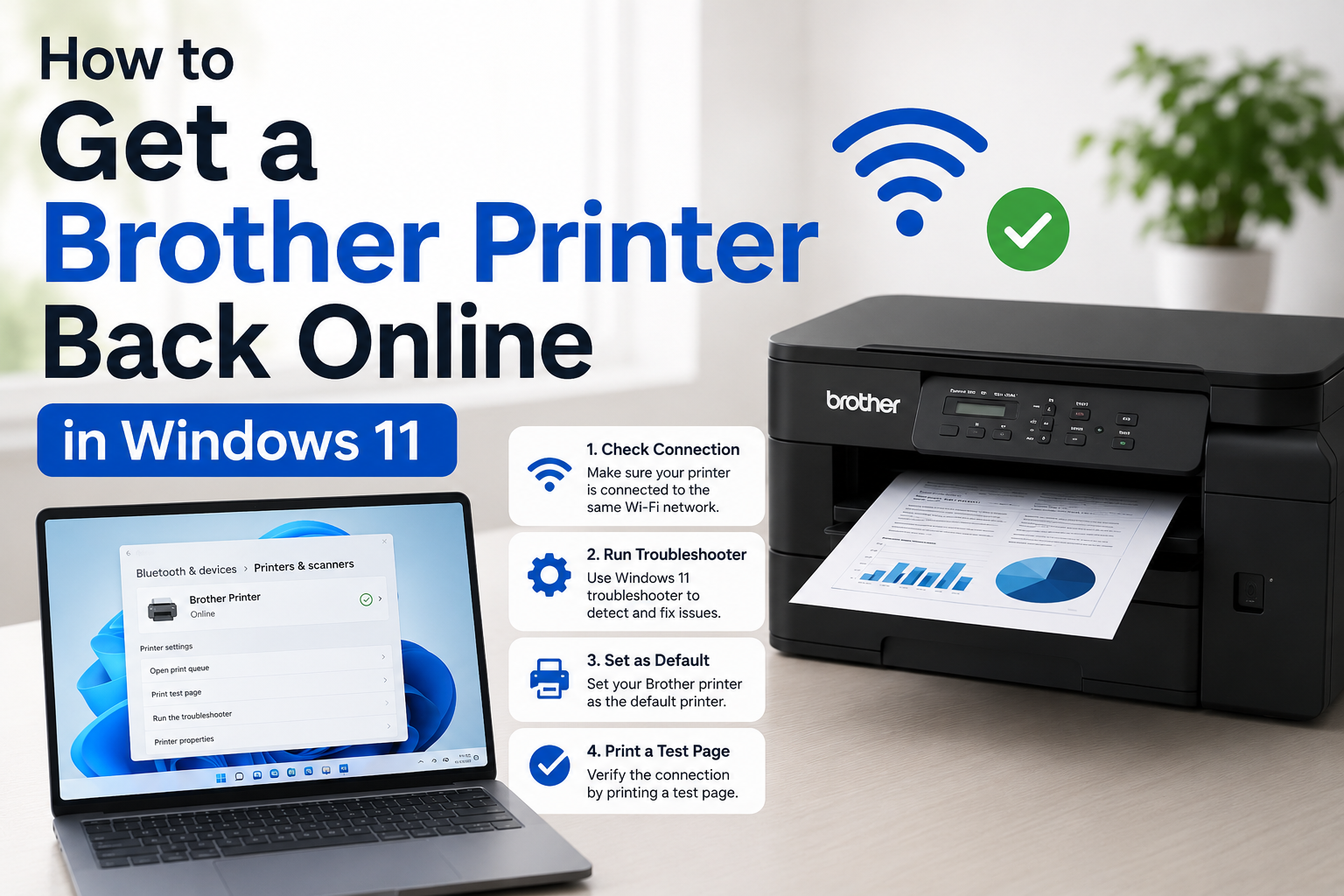
How to Get A Brother Printer Back Online in Windows 11
To get your Brother printer back online in Windows 11, first ensure it is powered on and connected to the same Wi-Fi network or USB port as your computer. If the status does not change, clear any stuck print jobs from that same queue, or type “services.msc” into the Windows search bar to find and restart the Print Spooler service.
Check the Physical Connections and Printer Status
Before changing any software settings on your computer, you need to verify that the hardware itself is functioning correctly. Many printing issues stem from a loose cable or a minor power glitch that disconnects the machine from your network. You should check the power cable and ensure the device is turned on with no error lights flashing on its panel. If you use a USB cable, try unplugging it and plugging it back into a different port. For wireless models, restarting your internet router often solves the connectivity glitch immediately.
Set Your Device as the Default Printer
Windows 11 sometimes switches your primary printing device automatically after a system update or when you connect a new accessory. This unexpected change forces your computer to send print jobs to the wrong queue, which triggers the Brother printer offline error message. To fix this, open your system settings and navigate to the Bluetooth and devices section. Click on the printers and scanners option to view your full list of connected hardware. Select your specific model from the list and click the button to set it as your primary option.
Clear the Print Queue and Check Printer Online Status
A jammed print queue can stall the entire system and make your computer believe the hardware is completely unavailable. When multiple documents get stuck in the line, the system often defaults to showing a Brother printer offline notification. You need to open the print queue from your devices menu to see what is causing the traffic jam. Right-click on the window, select the option to cancel all documents, and let the queue clear out completely. After clearing the old jobs, click on the printer menu tab at the top of that window. Make sure there is no checkmark next to the option that says use printer offline.
Restart the Windows Print Spooler Service
The print spooler is a background service in Windows 11 that manages all communication between your software and printing hardware. If this specific service crashes or gets stuck, you will likely need Brother printer assistance to get things moving again. Restarting the spooler refreshes the connection and clears out temporary digital bugs without deleting your files.
Open the Windows Services application by typing services msc into your taskbar search box. Scroll down the alphabetical list until you find the print spooler entry. Right-click on it and select restart to refresh the background system-wide.
Update the Drivers for Windows 11 Compatibility
Outdated software drivers are a frequent cause of communication failures between your computer and your office equipment. If you continuously experience a Brother printer offline status, your current driver might not fully support your updated operating system. Installing the latest software version ensures that your computer understands how to send data correctly. You can update this by opening the device manager from your start menu. Expand the Printers section, right-click your device name, and choose the Update Driver option. Alternatively, visiting the official download page allows you to install the package manually.
Conclusion
Fixing connectivity issues on Windows 11 usually takes just a few minutes of systematic troubleshooting. Most problems relate to simple software settings or temporary communication freezes rather than actual hardware failure. Following these steps helps you clear out the stuck queues and reset the background services that cause disruption. If you still face issues after trying these steps, seeking official Brother printer assistance can help you resolve deeper system conflicts. Keeping your software updated will prevent these annoying disruptions from happening during your workday.
