

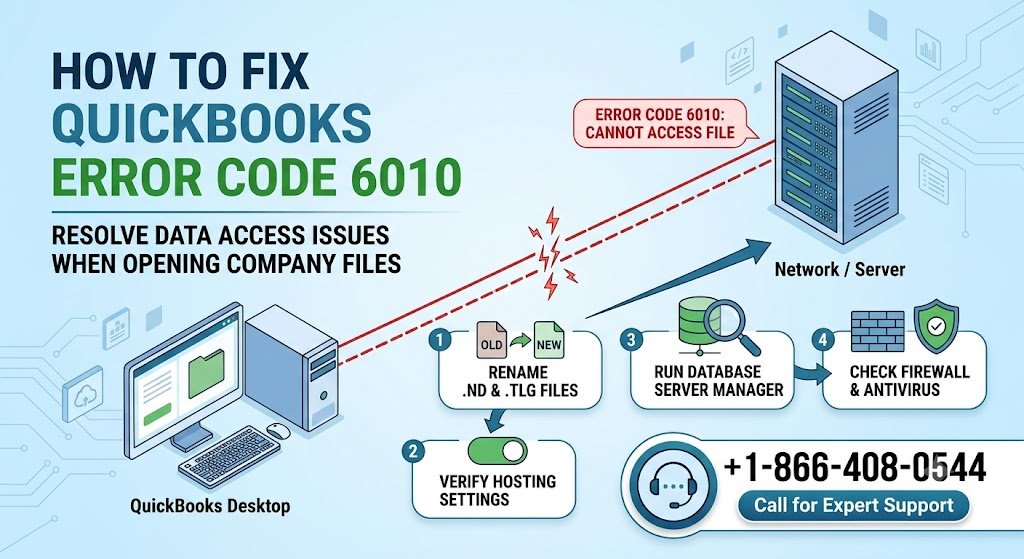
Nothing is more frustrating than trying to access your company file and being greeted with QuickBooks Error Code 6010 instead. This error typically appears when QuickBooks cannot access the company file due to network restrictions, hosting conflicts, firewall settings, or damaged configuration files.
For small businesses, accountants, and bookkeepers who rely on QuickBooks daily, Error 6010 can bring productivity to a halt. The good news is that this issue is usually fixable with the right troubleshooting steps.
In this guide, we’ll explain what QuickBooks Error Code 6010 means, why it occurs, how to fix it, and what you can do to prevent it from happening again.
What Is QuickBooks Error Code 6010?
QuickBooks Error Code 6010 belongs to the 6000-series errors, which are generally related to company file access problems.
Users often encounter the following message:
“An error occurred when QuickBooks tried to access the company file. Please try again. Error Codes: (-6010, -100).”
This error indicates that QuickBooks is unable to establish proper communication with the company file location.
Why Does QuickBooks Error Code 6010 Occur?
Several factors can trigger this error when opening a company file.
1. Third-Party Security Software Interference
Antivirus or security programs may mistakenly block QuickBooks processes.
Common examples include:
- Antivirus applications
- Endpoint security tools
- Firewall restrictions
2. Incorrect Hosting Configuration
QuickBooks hosting settings may be enabled on multiple workstations instead of only the server.
This often creates network communication conflicts.
3. Corrupted .ND or .TLG Files
QuickBooks uses configuration files to locate and communicate with company files.
Damaged network files can prevent successful access.
4. Company File Stored on an Unavailable Network
If the server is offline or disconnected, QuickBooks cannot reach the company file.
5. Windows User Permission Issues
Insufficient permissions can prevent QuickBooks from accessing folders and files.
6. Firewall Blocking QuickBooks Services
Improper firewall settings may block:
- QuickBooks Database Server Manager
- QuickBooks executable files
- Network communication ports
Symptoms of QuickBooks Error Code 6010
You may notice:
- Company file won’t open
- Multi-user mode stops working
- Frequent freezing when accessing data
- QuickBooks crashes unexpectedly
- Network-related warning messages
- Slow performance while opening company files
Recognizing these symptoms early can help prevent prolonged downtime.
Before You Start Troubleshooting
Create a backup of your QuickBooks company file before making any significant changes.
You should also:
- Close QuickBooks on all workstations
- Verify server connectivity
- Ensure Windows updates are current
Solution 1: Rename the .ND and .TLG Files
Damaged network configuration files are one of the most common causes of Error 6010.
Steps
- Navigate to the folder containing your company file.
- Locate files ending in:
- .ND
- .TLG
- Right-click each file.
- Select Rename.
- Add “.OLD” to the end.
Example:
- CompanyFile.qbw.nd → CompanyFile.qbw.nd.old
- CompanyFile.qbw.tlg → CompanyFile.qbw.tlg.old
- Reopen QuickBooks.
QuickBooks will automatically create new configuration files.
Solution 2: Verify Hosting Settings
Hosting should only be enabled on the server computer.
Check Hosting Status
- Open QuickBooks.
- Select File.
- Choose Utilities.
If you see:
Stop Hosting Multi-User Access
Hosting is enabled.
On workstations, hosting should be disabled.
Disable Hosting on Workstations
- Open QuickBooks.
- Go to File > Utilities.
- Select Stop Hosting Multi-User Access.
Repeat on all workstations.
Solution 3: Run QuickBooks Database Server Manager
The Database Server Manager helps QuickBooks locate company files over the network.
Steps
- Open QuickBooks Tool Hub.
- Select Network Issues.
- Launch QuickBooks Database Server Manager.
- Scan the folder containing your company file.
- Allow the scan to complete.
- Restart QuickBooks.
This process rebuilds network permissions and connectivity.
Solution 4: Check Your Antivirus Software
Security programs can mistakenly identify QuickBooks as a threat.
Troubleshooting Steps
Temporarily disable:
- Antivirus software
- Internet security applications
- Endpoint protection tools
Then attempt to open the company file.
If QuickBooks works correctly, create permanent exceptions for:
- QBW32.exe
- QBDBMgrN.exe
- QuickBooks installation folders
Always re-enable security software after testing.
Solution 5: Configure Firewall Exceptions
Windows Firewall may block QuickBooks communication.
Add Firewall Exceptions
Allow:
- QuickBooks Database Server Manager
- QuickBooks Desktop
- QuickBooks File Doctor
Also verify that QuickBooks network ports are open.
After updating firewall settings:
- Restart the computer.
- Reopen QuickBooks.
- Test access to the company file.
Solution 6: Move the Company File to a Local Folder
This helps determine whether the problem is network-related.
Steps
- Copy the company file.
- Paste it onto the local desktop.
- Open QuickBooks.
- Attempt to access the copied file.
If the file opens locally, the issue likely involves network connectivity or permissions.
Solution 7: Use QuickBooks File Doctor
QuickBooks File Doctor can automatically detect and repair many company file issues.
How to Run File Doctor
- Download and install QuickBooks Tool Hub.
- Open Tool Hub.
- Select Company File Issues.
- Launch QuickBooks File Doctor.
- Choose your company file.
- Start the scan.
Allow the repair process to complete before reopening QuickBooks.
Solution 8: Verify Folder Permissions
QuickBooks requires proper folder access rights.
Check Permissions
- Right-click the company file folder.
- Select Properties.
- Open the Security tab.
- Ensure all QuickBooks users have:
- Read access
- Write access
- Modify permissions
Insufficient permissions frequently cause access-related errors.
Real-World Example
A small accounting firm with five employees suddenly began receiving QuickBooks Error Code 6010 after installing a new antivirus solution.
The company file remained accessible on the server but could not be opened from workstations.
After investigating, they discovered the antivirus software had blocked QuickBooks Database Server Manager.
Creating firewall and antivirus exceptions immediately restored multi-user access and resolved the issue.
Read More- QuickBooks Error 15000
How to Prevent QuickBooks Error Code 6010
Prevention is always better than troubleshooting.
Keep QuickBooks Updated
Install regular QuickBooks updates to reduce compatibility issues.
Monitor Antivirus Settings
Review security software updates that may affect QuickBooks connectivity.
Perform Regular Backups
Schedule automatic company file backups.
Verify Hosting Configuration
Ensure only the server hosts the company file.
Maintain Network Stability
Monitor server uptime and network reliability.
Run File Maintenance Regularly
Use:
- Verify Data
- Rebuild Data
- QuickBooks Tool Hub
to maintain file integrity.
Frequently Asked Questions
What causes QuickBooks Error Code 6010?
The error is commonly caused by network issues, antivirus interference, firewall restrictions, damaged .ND files, or incorrect hosting settings.
Can I fix QuickBooks Error 6010 myself?
Yes. Most users can resolve the issue using QuickBooks File Doctor, hosting verification, firewall adjustments, or file repairs.
Is QuickBooks Error Code 6010 related to multi-user mode?
Yes. The error frequently occurs in network environments where multiple users access the same company file.
Does antivirus software cause Error 6010?
It can. Many antivirus programs mistakenly block QuickBooks services required for company file access.
Will I lose data while fixing Error 6010?
In most cases, no. However, creating a backup before troubleshooting is strongly recommended.
When should I contact QuickBooks support?
If the error persists after completing all troubleshooting steps, professional assistance may be necessary to identify deeper network or file corruption issues.
Final Thoughts
QuickBooks Error Code 6010 can prevent access to your company file and disrupt daily business operations. Fortunately, the issue is often linked to network settings, firewall restrictions, antivirus software, or damaged QuickBooks configuration files.
By following the troubleshooting methods outlined above, most users can restore access quickly and get back to managing their finances without unnecessary downtime.
If you’re still struggling with QuickBooks Error Code 6010 or need expert assistance diagnosing company file access issues, the professionals at QbookAssist are ready to help.
Call +1-866-408-0544 today for immediate QuickBooks troubleshooting and support.
