

When most people start using Silhouette Studio®, they learn the basics quickly: import a design, resize it, adjust cut settings, and send it to their Silhouette machine. While these features are enough to create amazing projects, many users never realize just how powerful the software truly is.
Silhouette Studio® is packed with advanced tools that can save time, improve design accuracy, and help creators produce more professional results. In fact, some of the most useful features are often overlooked simply because they’re tucked away in menus or rarely mentioned in beginner tutorials.
Whether you’re a hobby crafter, small business owner, or experienced maker, discovering these hidden features can completely transform your workflow.
Let’s explore five powerful Silhouette Studio features that many crafters never use—but absolutely should.
Why Silhouette Studio® Is More Than Just Cutting Software
One of the biggest strengths of the Silhouette ecosystem is the connection between:
- Silhouette Studio®
- Silhouette America cutting machines
- Creative resources from the Silhouette Design Store
Together, they create a complete design-to-production workflow.
While the Design Store provides thousands of ready-made files and fonts, Silhouette Studio gives you the ability to customize, edit, and optimize those designs before cutting.
The more you understand the software, the more creative control you gain.
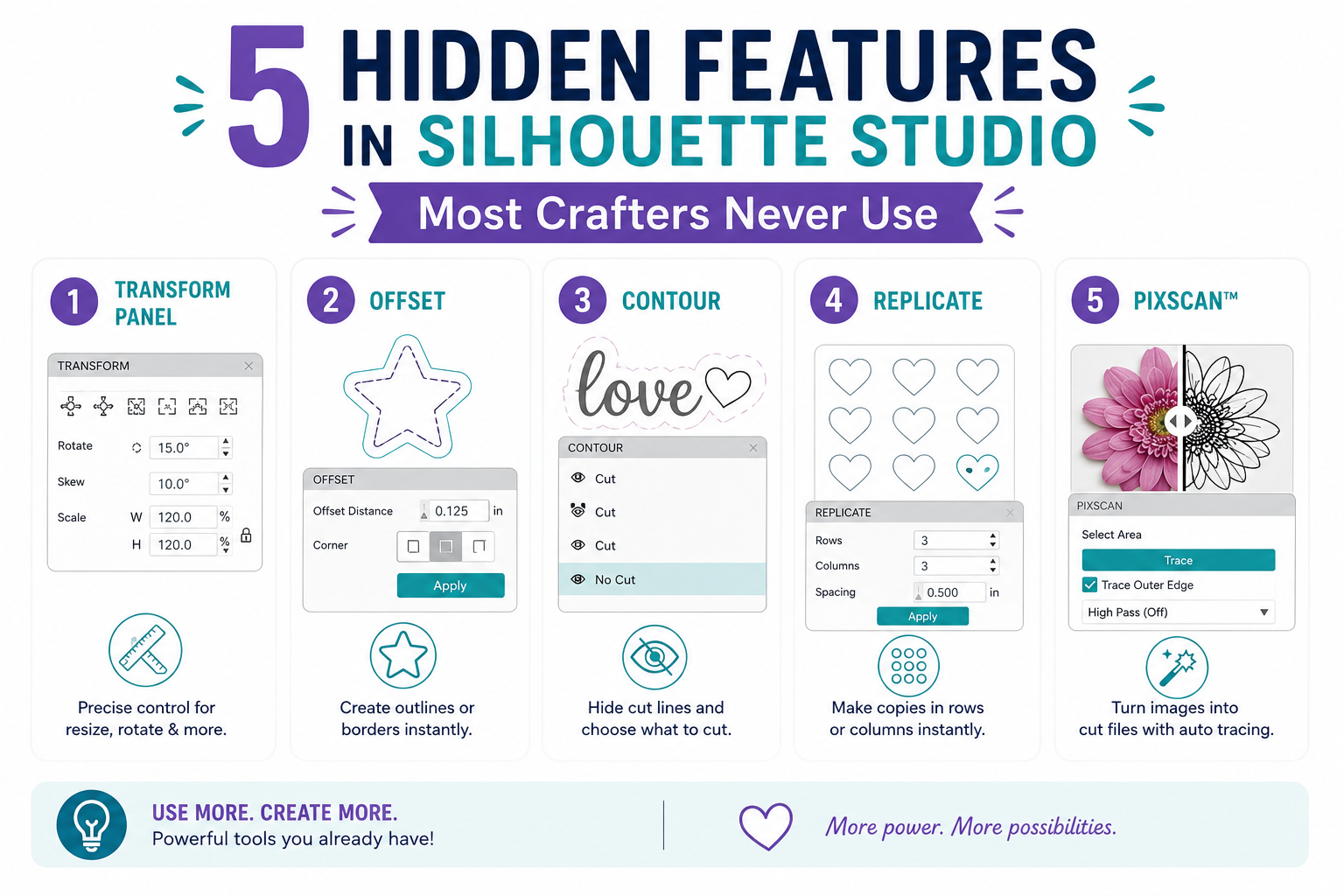
Feature #1: The Offset Tool for Instant Custom Borders
Many users know the Offset Tool exists, but surprisingly few use it to its full potential.
What Is the Offset Tool?
The Offset Tool creates a new outline around an existing design.
Think of it as creating an expanded border around:
- Text
- Shapes
- Graphics
- Logos
Why It’s So Useful
Offset can instantly help you create:
- Sticker borders
- Layered vinyl designs
- Shadow effects
- Printable outlines
- Custom labels
For example, if you’re creating stickers, adding an offset creates the cut line around your artwork automatically.
Business Applications
Small business owners often use offsets to:
- Create packaging stickers
- Design product labels
- Build layered signage
This simple feature can save hours of manual design work.
Feature #2: The Replicate Panel for Fast Production
If you’ve ever copied and pasted designs repeatedly, you’re working harder than necessary.
The Replicate Panel is one of the most valuable productivity tools inside Silhouette Studio.
What Does It Do?
The Replicate feature automatically duplicates designs across your workspace.
You can:
- Fill a page
- Create rows
- Create columns
- Duplicate around a shape
- Generate multiple copies instantly
Why It Matters
Imagine creating:
- 50 stickers
- 20 labels
- Multiple keychain designs
Instead of manually duplicating each item, the Replicate Panel does it in seconds.
Perfect For
- Etsy sellers
- Product makers
- Batch production
- Event projects
The time savings add up quickly.
Feature #3: Advanced Alignment Tools
Many crafters manually drag objects into place, hoping everything lines up properly.
Silhouette Studio offers powerful alignment tools that most users rarely explore.
What Can Alignment Tools Do?
You can:
- Center objects
- Align left or right
- Align top or bottom
- Space objects evenly
- Distribute elements automatically
Why This Matters
Proper alignment improves:
- Professional appearance
- Consistency
- Design accuracy
This becomes especially important when creating:
- Business logos
- Invitations
- Product packaging
- Multi-layer projects
Pro Tip
Before welding text or combining designs, use alignment tools to ensure everything is perfectly positioned.
Feature #4: Cut by Color for Multi-Layer Projects
Many crafters manually separate designs when working with multiple colors.
The “Cut by Color” feature makes this process significantly easier.
How It Works
Silhouette Studio can recognize different line colors and organize cuts automatically.
For example:
- Red layer = cut first
- Blue layer = cut second
- Green layer = cut third
Why It’s Helpful
This is incredibly useful for:
- Multi-color vinyl decals
- Layered HTV projects
- Paper crafting
- Complex signs
Instead of rearranging designs repeatedly, you can organize everything in one file.
Business Benefits
For creators selling custom products, Cut by Color speeds up production and reduces mistakes.
Feature #5: Nesting for Material Savings
One of the most overlooked features in Silhouette Studio is Nesting.
Yet for anyone who sells products or crafts frequently, it can save a significant amount of material.
What Is Nesting?
Nesting automatically rearranges designs to fit more efficiently within a material area.
Instead of manually positioning shapes, the software optimizes placement.
Benefits of Nesting
- Reduces waste
- Maximizes material usage
- Saves money
- Speeds up layout creation
Perfect For
- Vinyl users
- Cardstock projects
- Small business production
- Bulk orders
Over time, reducing material waste can significantly improve profitability.
Bonus Feature: Glyph Access for Creative Typography
Many crafters use fonts but never explore glyphs.
What Are Glyphs?
Glyphs are decorative alternate characters included with many fonts.
Examples include:
- Swashes
- Decorative endings
- Alternate letters
- Script embellishments
Why They Matter
Glyphs help create:
- Elegant wedding projects
- Premium signage
- Personalized gifts
- Boutique branding
A simple font can look completely different when alternate glyphs are used.
Bonus Feature: Sketch Tools for Drawing Projects
Most people associate Silhouette machines with cutting.
However, Silhouette Studio also supports drawing projects when using:
- Sketch Pens
- Pen adapters
- Drawing tools
This allows users to create:
- Handwritten-style cards
- Planner pages
- Invitations
- Illustrations
Many users never realize their machine can draw as well as cut.
How the Silhouette Design Store Enhances These Features
The Silhouette Design Store provides thousands of files that work beautifully with these advanced tools.
For example:
Offset Tool
Perfect for:
- Sticker designs
- Labels
- Typography projects
Cut by Color
Works well with:
- Layered designs
- Multi-color graphics
Nesting
Helps maximize efficiency when cutting Design Store files in bulk.
Because the files are optimized for Silhouette Studio, they integrate seamlessly into advanced workflows.
Why Learning Hidden Features Matters
Many crafters reach a point where they feel limited by their software.
The truth is:
Most limitations aren’t caused by the machine.
They’re caused by not fully exploring the software.
Learning advanced features helps you:
- Work faster
- Reduce mistakes
- Save materials
- Create more professional projects
- Expand your creative possibilities
Who Benefits Most from These Features?
Hobby Crafters
Can create more polished projects with less effort.
Etsy Sellers
Can streamline production and reduce waste.
Small Business Owners
Can increase efficiency and profitability.
Advanced Makers
Can unlock more sophisticated design techniques.
No matter your experience level, these tools can improve your workflow.
Getting Comfortable with Advanced Tools
The best way to learn is through experimentation.
Try:
- Using Offset on a favorite design
- Replicating a sticker sheet
- Testing Nesting on a vinyl project
- Exploring alignment options
- Creating a Cut by Color project
Small experiments often lead to major workflow improvements.
Final Thoughts: Unlock More from Silhouette Studio®
Silhouette Studio® is far more powerful than many users realize.
Beyond basic cutting functions, it includes tools that can help you design smarter, work faster, and create better results.
Features like:
- Offset
- Replicate
- Alignment
- Cut by Color
- Nesting
Can dramatically improve both crafting enjoyment and production efficiency.
Combined with Silhouette America’s cutting machines and the extensive creative resources available through the Silhouette Design Store, these hidden features help transform ordinary projects into professional-quality creations.
So the next time you open Silhouette Studio®, take a few extra minutes to explore beyond the basics.
You might discover a feature that completely changes the way you craft.
