

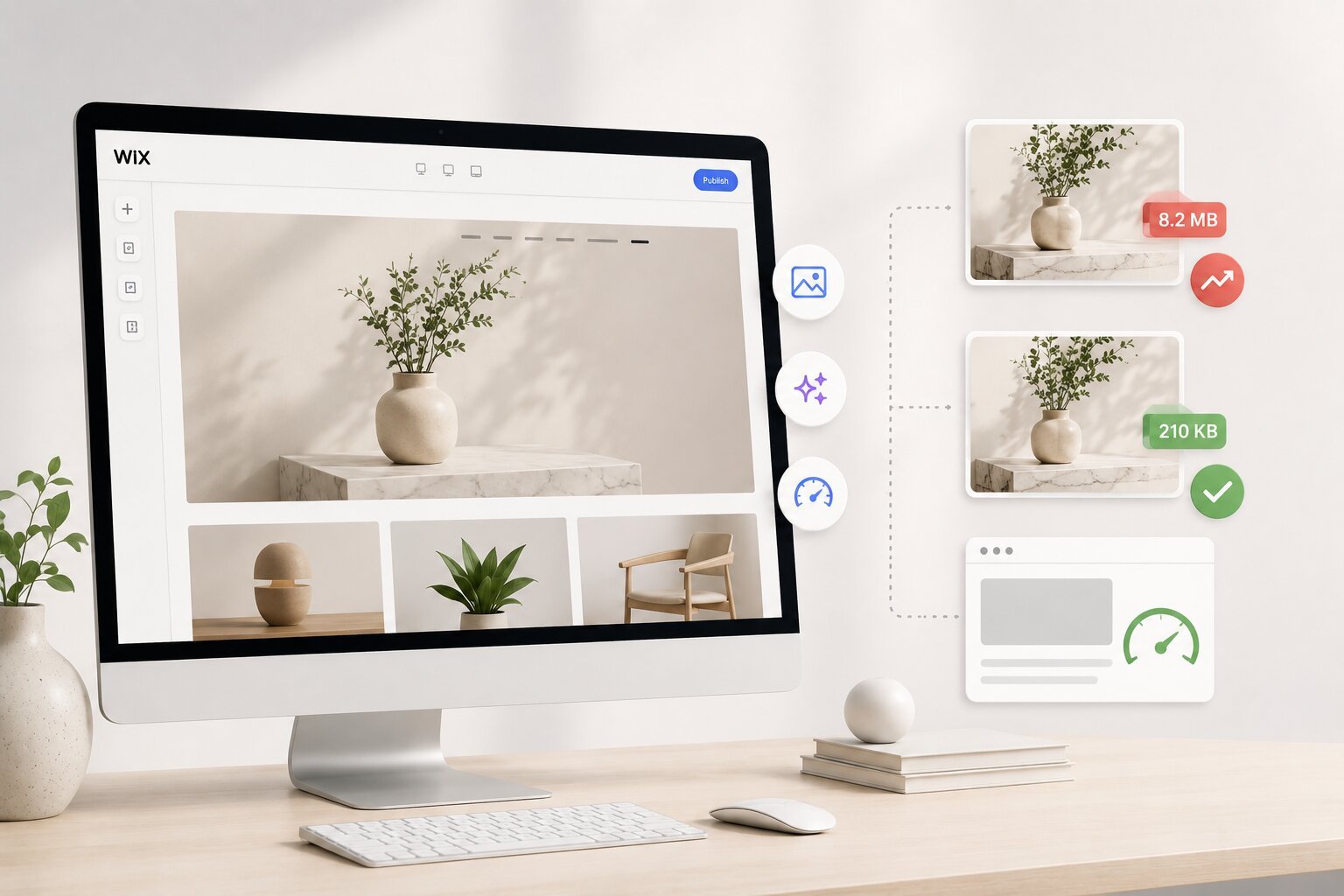
Building a site on Wix is supposed to be the easy part. You pick a template, upload your images, tweak the layout, and go live. But somewhere between “looking great in the editor” and “actually fast for visitors,” many Wix sites fall apart, and images are almost always the reason. Wix image optimization gets talked about a lot in SEO circles, but most of what’s out there either overcomplicates it or skips the parts that actually matter.
Wix Does a Lot, Just Not Everything
Wix has put serious engineering into image delivery. It runs images through a global CDN, applies compression automatically, and, as of its most recent infrastructure updates, converts images to WebP format for browsers that support it. WebP can cut file sizes by up to 80% compared to a standard JPEG with no visible quality drop. Lazy loading kicks in by default for anything below the fold.
That’s a genuinely strong setup. The catch is that all of it operates on the delivery side. Once an image is in the system, Wix works with what it has. A 15MB photo uploaded straight from a camera still creates a 15MB processing burden before any of those optimizations run. The platform can reduce it, but it can’t transform a bloated source file into a clean one. That gap between what Wix handles automatically and what still requires human judgment is where most performance problems live.
The Real Reasons Images Slow Wix Sites Down
Before you can fix slow-loading pages, it helps to understand what’s actually causing the problem.
Nobody thinks twice about hitting upload
Wix is designed to feel frictionless. Drag an image in, it appears on the page, done. That ease makes it incredibly common for images to go up completely unprepared – original resolution, uncompressed, pulled straight from a stock site or iPhone. A single hero image that should weigh around 200KB often comes in at 3MB or more. Spread that across a homepage with a banner, a gallery section, team photos, and a few blog thumbnails, and the total image payload gets heavy fast.
The page might look fine in the editor preview. It’ll load slower than it should for actual visitors, particularly on mobile.
The hero image problem most people don’t catch
There’s a specific technical issue that catches a lot of Wix sites off guard. Wix applies lazy loading to all images by default, images don’t load until a visitor is about to scroll to them. That’s smart for images further down the page, but it creates a real problem for the main hero image sitting at the very top.
Google measures something called Largest Contentful Paint (LCP), essentially, how quickly the biggest visible element on a page loads. For most sites, that’s the hero banner. When lazy loading applies to that image, the browser defers loading it even though it’s the first thing the visitor sees.
LCP slows down, Core Web Vitals scores can suffer, and the overall page experience becomes weaker, which may affect search performance over time. It’s a subtle issue, but it’s one of the more direct ways that image handling on Wix can affect SEO.
Choosing PNG for everything
PNG gets used out of habit. It feels “higher quality” because it’s lossless. But lossless doesn’t mean better for the web, it means larger. A full-color photograph saved as PNG can be three to five times the size of the same image in JPEG or WebP, with no visible difference to the human eye at web resolutions.
This shows up constantly on Wix sites, PNG product photos, PNG blog thumbnails, and PNG background images. Each one is adding weight to the page that doesn’t need. Wix won’t flag this. The format gets delivered as-is, just through a faster pipeline.
Uploading at the wrong size
A common pattern: uploading a 4000px-wide image into a section that displays at 1200px. Wix does apply some responsive resizing on delivery, but the original file is still what’s sitting in the media library. Starting from an oversized source means the system is doing more work than it needs to, and the result is often still heavier than it would be if the image had been sized correctly before upload.
What Gets Hurt When This Goes Unaddressed
The effects of poor image handling on Wix ripple into several areas that matter for real business outcomes.
Core Web Vitals take a direct hit. Slow LCP from an oversized hero image. Layout shift (CLS) from images that don’t have defined dimensions and cause the page to reflow as they load. These are Google ranking signals now, not just performance metrics.
Mobile visitors notice first. Mobile connections are more constrained, and mobile browsers have less processing headroom. An image that loads quickly on a desktop at home will drag noticeably on a phone on a regular connection.
Visitors leave. This one isn’t complicated. Pages that take too long to load see higher bounce rates. That’s lost traffic, fewer conversions, and weaker engagement signals that can gradually affect overall search performance.
Fixing It Is Actually Straightforward
None of the solutions here requires developer access or advanced technical knowledge. They just require consistency.
1. Resize images before uploading. Match the dimensions to how the image will actually display on the page. A section background that renders at 1400px wide doesn’t need a 4000px source. This single habit eliminates a significant portion of avoidable file weight.
2. Run everything through an image compressor before it goes into Wix. Wix’s compression works better when it starts from a leaner source. Using a dedicated image compressor before upload, especially one that converts to WebP, gives Wix’s delivery system cleaner inputs and produces better results on the other end. Image Optimizer Pro handles batch compression with format conversion built in, which makes it practical for sites with ongoing content uploads.
3. Remove lazy loading from hero images. On the LCP image specifically, usually the main banner, lazy loading should be turned off. This is a per-element setting in the Wix editor and takes about ten seconds to change. It has a direct, measurable impact on LCP scores.
4. Set explicit dimensions on image elements. Defining width and height prevents the browser from guessing, which eliminates layout shift during load. It’s a small step that directly improves CLS.
FAQ
What image format works best on Wix?
WebP compresses well without visible quality loss. Uploading in JPEG or WebP (rather than PNG or RAW) gives the platform better material to work with from the start.
Why is my Wix site slow, even with automatic optimization on?
Usually, it’s the source file. Wix optimizes delivery, not the original upload. Large source files create a processing burden that the platform’s automation can reduce but can’t fully overcome.
How does an image compressor fit into a Wix workflow?
It fills the gap between what Wix handles on the delivery side and what needs to happen before upload. Compressing and converting images before they go into the media library means Wix’s automation starts from a better input and the delivered output is leaner as a result.
How often should images on a Wix site be audited?
For sites with regular content, blogs, product pages, and portfolios, a monthly check on newly uploaded media keeps things from accumulating. A broader audit every quarter helps catch older images that might have been uploaded without proper preparation.
